Mac Setup for Web Development [2026]
This is the Mac setup I use every day for full-stack web development on my freelance projects. After several years on a MacBook Pro 2015, I moved to Apple Silicon and have kept this guide refreshed annually so it reflects what I actually run, not a snapshot from years ago.
What you get here, end to end:
- macOS system preferences worth changing on day one
- Homebrew formulae and casks I install on every new machine
- iTerm2, Oh My Zsh, and Starship for a clean terminal
- VS Code extensions and settings for JavaScript, TypeScript, React, and Astro
- Git defaults, SSH per service, and Node.js via NVM
Here comes everything I run in 2026:
MacBook Pro Specification
- 14-inch
- Apple Silicon (currently M1 Pro with 10-core CPU, 16-core GPU, 16-core Neural Engine)
- 32 GB RAM
- 512 GB SSD
- QWERTY = English (International)
- macOS Sequoia (or newer)
System Preferences
- Appearance
- Dark Mode
- Show Scroll Bars -> “Always”
- Ugly, but better for web development
- Dock
- Remove most applications from Dock
- Automatic Hide
- Smaller Dock
- “Show recent applications in Dock” -> off
- “Show indicators for open applications” -> on
- Battery -> “Show Percentage”
- Display
- Nightshift
- Security
- Touch ID
- Notifications
- Off, except for Calendar
- Siri
- Disabled
- Trackpad
- Tap to Click
- Point & Click -> Look up & data detectors off
- More Gestures -> Notification Centre off
- Keyboard
- Text
- disable “Capitalise word automatically”
- disable “Add full stop with double-space”
- disable “Use smart quotes and dashes”
- use
"for double quotes - use
'for single quotes
- Keyboard -> Mission Control -> disable all
- Press FN to -> “Do Nothing”
- Keyboard Shortcuts -> Spotlight -> CMD + Space disable
- We will be using Raycast instead
- Text
- Mission Control
- Hot Corners: disable all
- Finder
- General
- New Finder windows show: [Downloads]
- Show these items on the desktop: disable all
- Sidebar:
- activate all Favorites
- move Library to Favorites
- Show only:
- Desktop
- Downloads
- Documents
- [User]
- Library
- Tags
- disable all
- Advanced
- Show all Filename Extensions
- Remove Items from Bin after 30 Days
- View -> Show Preview (e.g. image files)
- General
- Sharing
- “Change computer name”
- Also terminal:
- sudo scutil —set ComputerName “newname”
- sudo scutil —set LocalHostName “newname”
- sudo scutil —set HostName “newname”
- Also terminal:
- “Make sure all file sharing is disabled”
- “Change computer name”
- Security and Privacy
- Turn on FileVault
- Add Browser to “Screen Recording”
- Storage
- Remove Garage Band & Sound Library
- Remove iMovie
- Trackpad
- Speed: Max
- Accessibility
- Scroll Speed: Max
System Preferences (Terminal)
Override more system preferences from the terminal …
# take screenshots as jpg (usually smaller size) and not png
defaults write com.apple.screencapture type jpg

# do not open previous previewed files (e.g. PDFs) when opening a new one
defaults write com.apple.Preview ApplePersistenceIgnoreState YES

# show Library folder
chflags nohidden ~/Library

# show hidden files
defaults write com.apple.finder AppleShowAllFiles YES

# show path bar
defaults write com.apple.finder ShowPathbar -bool true

# show status bar
defaults write com.apple.finder ShowStatusBar -bool true

killall Finder;
Files
- If files from previous machine are needed, transfer via external drive instead of cloud
Homebrew
Install Homebrew as package manager for macOS:
# paste in terminal and follow the instructions
/bin/bash -c "$(curl -fsSL https://raw.githubusercontent.com/Homebrew/install/HEAD/install.sh)"
Update everything in Homebrew to recent version:
brew updateInstall GUI applications (read more about these in GUI Applications):
brew install --cask \
  raycast \
  bitwarden \
  google-chrome \
  firefox \
  iterm2 \
  visual-studio-code \
  rectangle \
  slack \
  discord \
  signal \
  vlc \
  calibre \
  maccy \
  zoom \
  ngrok \
  obs \
  shotcut \
  claude-code \
  codex \
  font-hack-nerd-font
Install terminal applications (read more about these in Terminal Applications):
brew install \
  wget \
  eza \
  git \
  gh \
  jq \
  nvm \
  pnpm \
  colima \
  docker \
  docker-compose \
  commitizen \
  cmatrix \
  starship
GUI Applications
- Raycast (spotlight replacement)
- enabled
- File Search
- Snippets
- System
- shortcuts
- CMD + Space
- enabled
- Bitwarden (password manager)
- Preferences:
- enable dark mode
- enable Touch ID
- Preferences:
- Google Chrome (web development, web browsing)
- Preferences
- set default browser
- enable dark mode
- never save passwords
- always show bookmarks
- import bookmarks from previous machine
- Chrome Developer Tools
- enable dark mode
- Network -> only “Fetch/XHR”
- Chrome Extensions
- Preferences
- Firefox (web development)
- iTerm2 (terminal)
- Visual Studio Code (web development IDE)
- Claude Code (AI coding agent in the terminal)
- Codex (OpenAI’s coding agent in the terminal)
- Rectangle (window manager)
- use Rectangle settings, not Spectacle
- Slack (team messenger)
- Discord (community messenger)
- Signal (messenger)
- VLC (video player)
- use as default for video files
- Calibre (epub/ebook editor)
- Maccy (clipboard manager)
- enable “Launch at Login”
- Zoom (video conferencing)
- ngrok (tunneling)
- OBS (streaming)
- Shotcut (video editing)
Built-in MacOS Applications
- iMessage
- sync iCloud for iMessages just for the sake of syncing, then disable iCloud again
- sync contacts on iCloud
- iPhone: activate message forwarding to new Mac
- Pages
- show word count
- Apple Mail
- set up all email accounts with Fastmail as provider of choice
- show most recent message at top
- undo send delay set to off
- Notes
- New notes start with: Body
- Settings -> Disable: Group notes by date
- Quick Time Player
- save to Desktop
Terminal Applications
- wget (curl replacement)
- eza (modern
lsreplacement, the maintained fork of the unmaintainedexa)ezaeza -a(include hidden files)eza -l(include additional information)
- git (version control, see essential commands)
- GitHub CLI (
gh, used for SSH key upload, PRs, issues, gists) - jq (JSON processor for the command line)
- nvm (Node.js version manager)
- pnpm (Node.js package manager)
- Colima +
docker+docker-compose(lightweight Docker runtime, replaces Docker Desktop, see Docker on macOS setup)colima startto boot the VM, then usedockeranddocker composeas normal
- commitizen (conventional commit messages)
- cmatrix (terminal screensaver)
iTerm2
The look and feel we want to achieve from our terminal:
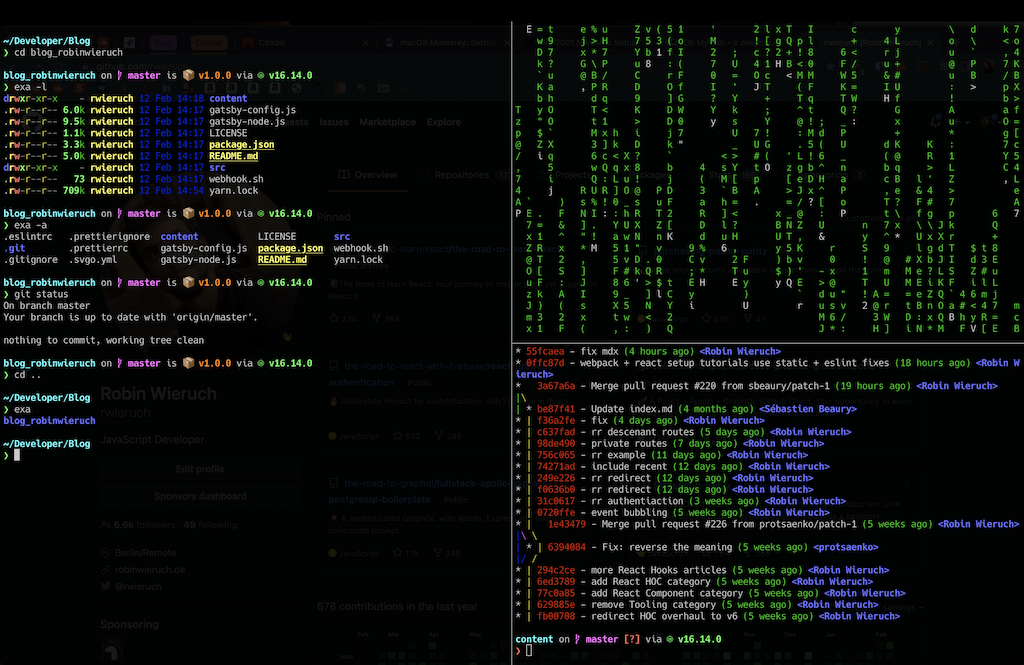
- Make iterm2 Default Term
- Preferences ->
- General -> Window
- unselect “Native full screen windows”
- select “close windows when closing an app”
- Appearance ->
- Windows
- select “Hide scrollbars”
- Tabs
- unselect “Show tab bar in fullscreen”
- Dimming
- Unselect all dimming
- Windows
- Profiles -> Window
- Transparency: 30
- Style: Full Screen
- Screen: Main Screen
- Profiles -> Advanced
- Semantic History -> Open with editor … -> VS Code
- Open new split pane with current directory
- Natural Text Editing
- General -> Window
- Bring it to fullscreen Command + Enters
Oh My Zsh
When you open iTerm2, you see that MacOS already comes with zsh as default shell. Install Oh My Zsh for an improved (plugins, themes, …) terminal (here: iTerm2) experience:
sh -c "$(curl -fsSL https://raw.githubusercontent.com/ohmyzsh/ohmyzsh/master/tools/install.sh)"Update everything (e.g. plugins) in Oh My Zsh to recent version:
omz updateImportant: If you change something in your Zsh configuration (.zshrc), force a reload:
source ~/.zshrcOh My Zsh Theme + Fonts:
We will use Starship as terminal theme and Hack Nerd Font for iTerm2 and VS Code. Both were already installed in the Homebrew step above (starship formula and font-hack-nerd-font cask).
Make Starship the default theme for Oh My Zsh:
echo 'eval "$(starship init zsh)"' >> ~/.zshrcUse the new font in iTerm2: Preferences -> Profile -> Text -> Font: Hack Nerd Font.
If the theme and font changes do not apply, reload your zsh configuration (.zshrc) or close and reopen iTerm2.
Oh My Zsh Plugins
ZSH Configuration File (.zshrc):
export ZSH="$HOME/.oh-my-zsh"

# Which plugins would you like to load?

# Standard plugins can be found in $ZSH/plugins/

# Custom plugins may be added to $ZSH_CUSTOM/plugins/

# Add wisely, as too many plugins slow down shell startup.

plugins=(
git
zsh-completions
zsh-autosuggestions
zsh-syntax-highlighting
)

# get machine's ip address

alias ip="ipconfig getifaddr en0"

# zsh shortcuts

alias zshconfig="vim ~/.zshrc"
alias zshsource="source ~/.zshrc"
alias ohmyzsh="cd ~/.oh-my-zsh"

# ssh shortcuts

alias sshhome="cd ~/.ssh"
alias sshconfig="vim ~/.ssh/config"

# git shortcuts

alias gitconfig="vim ~/.gitconfig"
alias gits="git status"
alias gitd="git diff"
alias gitl="git lg"
alias gita="git add ."
alias gitc="cz commit"
alias gitb="git branch --sort=-committerdate"

# clear terminal

alias c="clear"

# eza as ls replacement

alias ls="eza --long"

# Claude Code shortcut

alias cc="claude"

# load zsh-completions

autoload -U compinit && compinit

# use nvm

source /opt/homebrew/opt/nvm/nvm.sh

# use starship theme (needs to be at the end)

eval "$(starship init zsh)"
VS Code
The look and feel we want to achieve from our IDE:
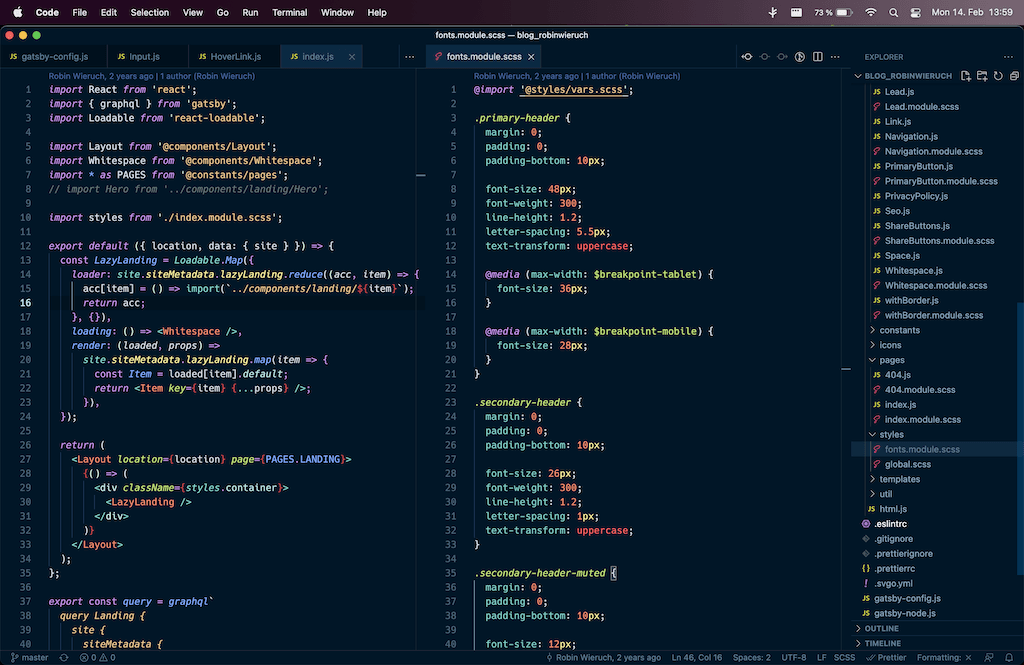
Extensions:
- Astro (Astro Support)
- Auto Close Tag
- Auto Hide (Hides Sidebar)
- Auto Rename Tag
- Better Comments (Comment Highlighting)
- Color Highlight (Highlight Colors)
- DotENV (.env File Syntax)
- EditorConfig (Per-Project Formatting Rules)
- ESLint (Code Style)
- Fontsize Shortcuts (Increase/Decrease Font Size)
- GitHub Dark Default (Theme)
- GitLens (Visualize Git)
- Headwind (Tailwind CSS Class Sorter)
- Highlight Matching Tag
- Increment Selection (Inline Number Increment/Decrement)
- JavaScript (ES6) Code Snippets (ES6 Snippets)
- MDX (MDX Support)
- Prettier (Code Formatter)
- Pretty TypeScript Errors (Better TypeScript Errors)
- Prisma (Prisma Support)
- Relative Go to Line (Jump Relative Lines)
- Status Bar Format Toggle (Toggle Format On Save from Status Bar)
- Styled Components (Styled Components Syntax)
- Tailwind CSS IntelliSense (Tailwind CSS)
- Tailwind Docs (Tailwind CSS)
- Tailwind Fold (Tailwind CSS)
- TODO Highlight (Highlight TODOs)
Manual:
- move Search feature from Activity Bar to Panel
JSON Settings:
{
  // ─── Window ──────────────────────────────────────────────────────────────
  "window.titleBarStyle": "native",
  "window.customTitleBarVisibility": "never",
  "window.title": "${activeEditorMedium}",

  // ─── Workbench ───────────────────────────────────────────────────────────
  "workbench.sideBar.location": "right",
  "workbench.startupEditor": "none",
  "workbench.statusBar.visible": true,
  "workbench.editor.enablePreview": false,
  "workbench.editor.restoreViewState": true,
  "workbench.activityBar.location": "hidden",
  "workbench.colorTheme": "GitHub Dark Colorblind (Beta)",
  "workbench.colorCustomizations": {
    "editor.lineHighlightBackground": "#102032",
    "editorCursor.foreground": "#ffffff",
    "terminalCursor.foreground": "#ffffff"
  },

  // ─── Editor: font & layout ───────────────────────────────────────────────
  "editor.fontFamily": "Hack Nerd Font Mono",
  "editor.fontSize": 14,
  "editor.lineHeight": 0,
  "editor.tabSize": 2,
  "editor.insertSpaces": true,
  "editor.detectIndentation": false,
  "editor.wordWrap": "off",
  "editor.lineNumbers": "on",
  "editor.minimap.enabled": false,
  "editor.stickyScroll.enabled": false,
  "editor.scrollBeyondLastLine": true,
  "editor.renderWhitespace": "none",
  "editor.renderLineHighlight": "all",
  "editor.padding.top": 36,

  // ─── Editor: cursor ──────────────────────────────────────────────────────
  "editor.cursorBlinking": "solid",
  "editor.cursorStyle": "line",
  "editor.cursorWidth": 2,

  // ─── Editor: behavior ────────────────────────────────────────────────────
  "editor.lightbulb.enabled": "off",
  "editor.inlineSuggest.enabled": true,
  "editor.find.addExtraSpaceOnTop": true,
  "editor.find.seedSearchStringFromSelection": "never",

  // ─── Files & Explorer ────────────────────────────────────────────────────
  "files.trimTrailingWhitespace": true,
  "files.associations": {
    ".env*": "makefile"
  },
  "explorer.confirmDelete": false,
  "explorer.confirmDragAndDrop": false,
  "explorer.compactFolders": false,

  // ─── Terminal ────────────────────────────────────────────────────────────
  "terminal.integrated.fontSize": 14,
  "terminal.integrated.fontFamily": "Hack Nerd Font Mono",

  // ─── Formatting (Prettier) ───────────────────────────────────────────────
  "editor.formatOnSave": false,
  "editor.formatOnPaste": false,
  "editor.formatOnType": false,
  "[javascript]": {
    "editor.formatOnSave": true,
    "editor.defaultFormatter": "esbenp.prettier-vscode"
  },
  "[javascriptreact]": {
    "editor.formatOnSave": true,
    "editor.defaultFormatter": "esbenp.prettier-vscode"
  },
  "[typescript]": {
    "editor.formatOnSave": true,
    "editor.defaultFormatter": "esbenp.prettier-vscode"
  },
  "[typescriptreact]": {
    "editor.formatOnSave": true,
    "editor.defaultFormatter": "esbenp.prettier-vscode"
  },
  "prettier.documentSelectors": ["**/*.astro"],
  "[astro]": {
    "editor.formatOnSave": true,
    "editor.defaultFormatter": "esbenp.prettier-vscode"
  },

  // ─── Linting (ESLint) ────────────────────────────────────────────────────
  "editor.codeActionsOnSave": {
    "source.fixAll": "explicit",
    "source.fixAll.eslint": "explicit",
    "source.addMissingImports": "explicit"
  },
  "eslint.validate": [
    "javascript",
    "javascriptreact",
    "typescript",
    "typescriptreact"
  ],

  // ─── JavaScript / TypeScript ─────────────────────────────────────────────
  "js/ts.updateImportsOnFileMove.enabled": "never",
  "js/ts.preferences.autoImportFileExcludePatterns": ["@radix-ui"],
  "js/ts.implicitProjectConfig.checkJs": true,
  "debug.javascript.codelens.npmScripts": "never",

  // ─── Git / GitLens ───────────────────────────────────────────────────────
  "git.openRepositoryInParentFolders": "never",
  "gitlens.advanced.messages": {
    "suppressCommitHasNoPreviousCommitWarning": true
  },

  // ─── GitHub Copilot ──────────────────────────────────────────────────────
  "github.copilot.nextEditSuggestions.enabled": true,
  "github.copilot.enable": {
    "*": true,
    "plaintext": false,
    "markdown": true,
    "scminput": false
  },

  // ─── Extensions: Todo Highlight ──────────────────────────────────────────
  "todohighlight.isEnable": true,
  "todohighlight.isCaseSensitive": true,

  // ─── Extensions: Auto Hide ───────────────────────────────────────────────
  "autoHide.autoHideSideBar": true,
  "autoHide.autoHidePanel": true,
  "autoHide.autoHideReferences": false,
  "autoHide.hideOnOpen": false,
  "autoHide.sideBarDelay": 0,
  "autoHide.panelDelay": 0
}
Git
From terminal, set global name and email:
git config --global user.name "Your Name"
git config --global user.email "you@your-domain.com"
Improved git log:
git config --global alias.lg "log --color --graph --pretty=format:'%Cred%h%Creset -%C(yellow)%d%Creset %s %Cgreen(%cr) %C(bold blue)<%an>%Creset' --abbrev-commit"Now use:
git lgSet the default branch to main instead of master:
git config --global init.defaultBranch mainPrint global git configuration:
git config --list
# or alias
# gitconfig
SSH
There are two common strategies for SSH keys: one SSH key to rule them all or one SSH key per service. I use the latter one and will here run yout through it by connecting to GitHub via SSH.
First, create a new SSH key in the ~/.ssh folder:
# in case the folder is not there yet
mkdir ~/.ssh

cd ~/.ssh
# or alias
# sshhome

ssh-keygen -t ed25519 -C "github"
# follow instructions
# use file name: github
# use passphrase and store it somewhere secure
Confirm whether the passphrase was set correctly by reading the private key:
ssh-keygen -y -f github
# confirm with passphrase
Create the SSH configuration file if it doesn’t exist yet:
# in case the file is not there yet
touch ~/.ssh/config
In your ~/.ssh/config file, add the new SSH key, so that it can get picked up for every terminal session automatically:
Host *
  AddKeysToAgent yes
  UseKeychain yes
  IdentityFile ~/.ssh/github
Add SSH key to MacOS’ keychain:
ssh-add --apple-use-keychain ~/.ssh/githubAdd the public key to your GitHub settings via the website or via the GitHub CLI (already installed via Homebrew above as gh):
cat ~/.ssh/github.pub | pbcopy

# or use GitHub's CLI
gh auth login
# the first interactive login often offers to upload the SSH key for you;
# if it doesn't, upload it explicitly:

gh ssh-key add ~/.ssh/github.pub -t github
That’s it. You have created an SSH key locally for one specific service, secured it via a passphrase, made it automatically available for every terminal session, and applied it to GitHub. In the case of GitHub, you are now able to interact with GitHub via SSH.
NVM for Node/npm
The node version manager (NVM) is used to install and manage multiple Node versions. After you have installed it via Homebrew in a previous step, type the following commands to complete the installation:
echo "source $(brew --prefix nvm)/nvm.sh" >> ~/.zshrc

source ~/.zshrc
# or alias
# zshsource
Now install the latest LTS version on the command line:
nvm install --ltsAfterward, check whether the installation was successful and whether the node package manager (npm) got installed along the way:
node -v && npm -vUpdate npm to its latest version:
npm install -g npm@latestAnd set defaults for npm:
npm set init-author-name="your name"
npm set init-author-email="you@example.com"
npm set init-author-url="example.com"
If you are a library author, log in to npm too:
npm adduserThat’s it. If you want to list all your Node.js installation, type the following:
nvm listIf you want to install a newer Node.js version, then type:
nvm install <version> --reinstall-packages-from=$(nvm current)
nvm use <version>
nvm alias default <version>
If you want to list all globally installed packages, run this command:
npm list -g --depth=0That’s it. You have a running version of Node.js and its package manager. From here you can scaffold your first project using my JavaScript project setup tutorial.
That is the full Mac setup I run as a freelance web developer. I keep this guide refreshed every year so it reflects the tools I actually use, not what was hot two years ago. If you have a tweak that saves you time on a new machine, let me know and I will fold it in. Curious what else I use day to day? Check out my about page.